Adding and arranging listing photos
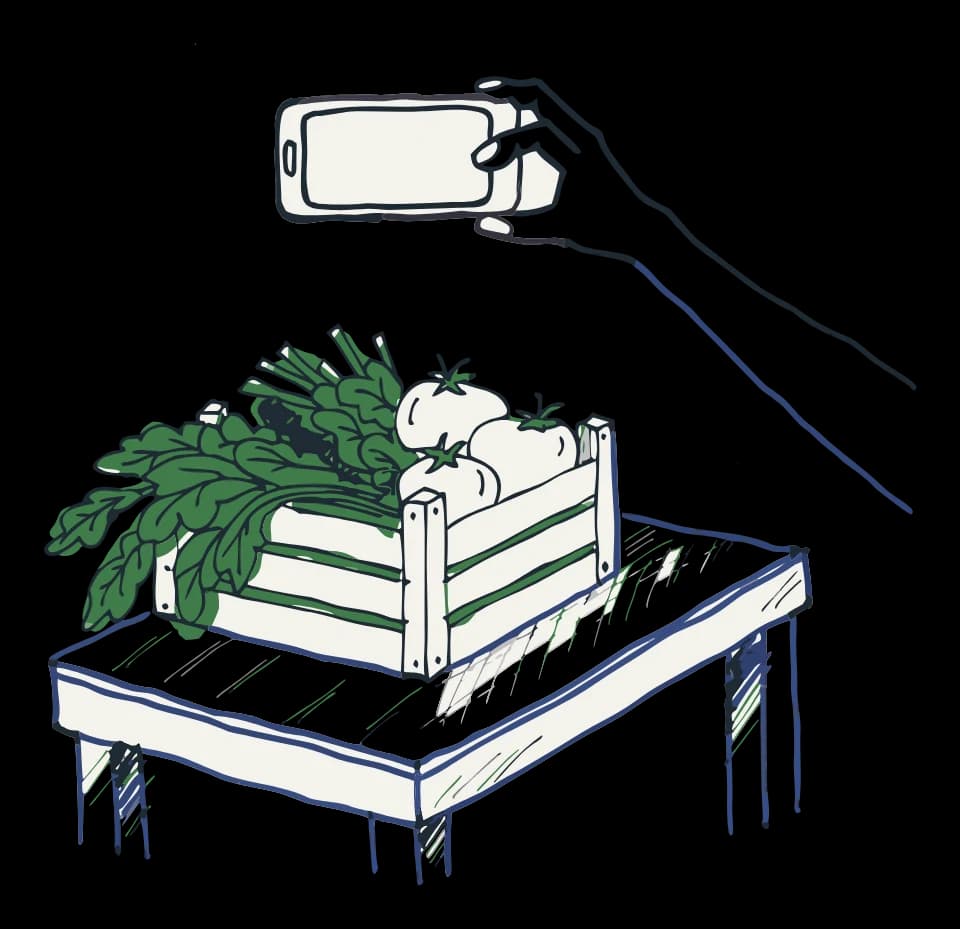
A listing holds up to 3 photos. The first one is the cover — it's what buyers see before they open the listing, and it's also what we read to help fill in the listing when you're creating it.
- 1While creating a listing, or from an existing listing's Images field, tap an empty slot to add a photo. You can take one or choose from your library.
- 2Repeat for up to 3 photos total.
- 3While creating a listing, tap Cover on any photo other than the first to promote it to the cover slot.
- 4Remove a photo you don't want with its remove control.
What to expect
Uploading past 3 rejects the extra photos rather than replacing anything — you'll see a note that listings hold up to 3 photos.
Rearranging photos after a listing is published works differently by platform: on native you can drag photos to reorder them, which moves whichever one lands first into the cover slot; on web you can add and remove photos but not reorder them, so the cover stays whichever photo is already first.